
Guide · Notifications
Your briefs and alerts on your phone
Send the morning brief and your alerts to Telegram, WhatsApp or a webhook such as ntfy: step by step, what is sent and what never is.
This is the guide that ships inside the app (Settings → Notifications → Step by step: open the guide).
Trading Desk keeps every morning brief and every alert on the Alerts page. If you also want them on your phone, you can send them to Telegram, WhatsApp or a webhook (such as the free ntfy app). Telegram, WhatsApp and the webhook are off until you switch them on, and you can turn each off again at any time. (Notifications on this computer are on in the app; see the last section.)
This guide is written for people who don't program. Each step says exactly what to tap or paste. Telegram is the easiest: about five minutes. WhatsApp takes longer and has limits (read its section before you start).
What gets sent, and what never does
- Sent: the morning brief exactly as you see it in the desk, and each alert that went out
(for example "AAPL is up 9.1% today." with a link to the source). That means ticker symbols, percentages, market prices and how big each holding is as a % of your portfolio.
- Also sent: which tickers you hold or watch (they appear in the text), and the price levels
you set yourself, such as your price zone or exit level, when one of your alerts names them (for example "X is below your exit level (9.50)").
- Never sent: how many shares or coins you hold, what you paid, or what your holdings are
worth in money.
- Your secrets stay on your computer. The bot token, access token or webhook address you
paste goes into your computer's keychain (Keychain on a Mac, Credential Manager on Windows). The desk never shows it again, never writes it to a log and never puts it in its database. You will only ever see the word set next to it.
Telegram (recommended)
You will make your own little Telegram bot. Only you will talk to it. The desk uses it to send you messages.
You need: the Telegram app on your phone (or Telegram on your computer), and Trading Desk open.
Step 1. Create the bot with BotFather
- Open Telegram.
- In the search box at the top, type BotFather. Open the one with a blue tick next to its name (its username is @BotFather).
- Tap Start (or send the message
/start). - Send the message
/newbot. - BotFather asks for a name. Type anything you like, for example
My Trading Desk. - BotFather asks for a username. It must end in
botand nobody else may have it yet, for exampleanna_desk_2026_bot. If it is taken, try another. - BotFather replies with a message that contains a token. It looks like this (yours is different):
123456789:AAH4kL-xxxxxxxxxxxxxxxxxxxx
Copy the whole token: the digits, the colon and the letters after it.
Treat the token like a password. Anyone who has it can send messages as your bot and read what is sent to it. If it ever leaks, send /revoke to BotFather to get a new one.
Step 2. Say hello to your bot
The bot can't write to you until you write to it first.
- BotFather's message has a link to your new bot (
t.me/your_bot_name). Tap it. - Tap Start (or send it any message, such as
hello).
Step 3. Paste the token into the desk
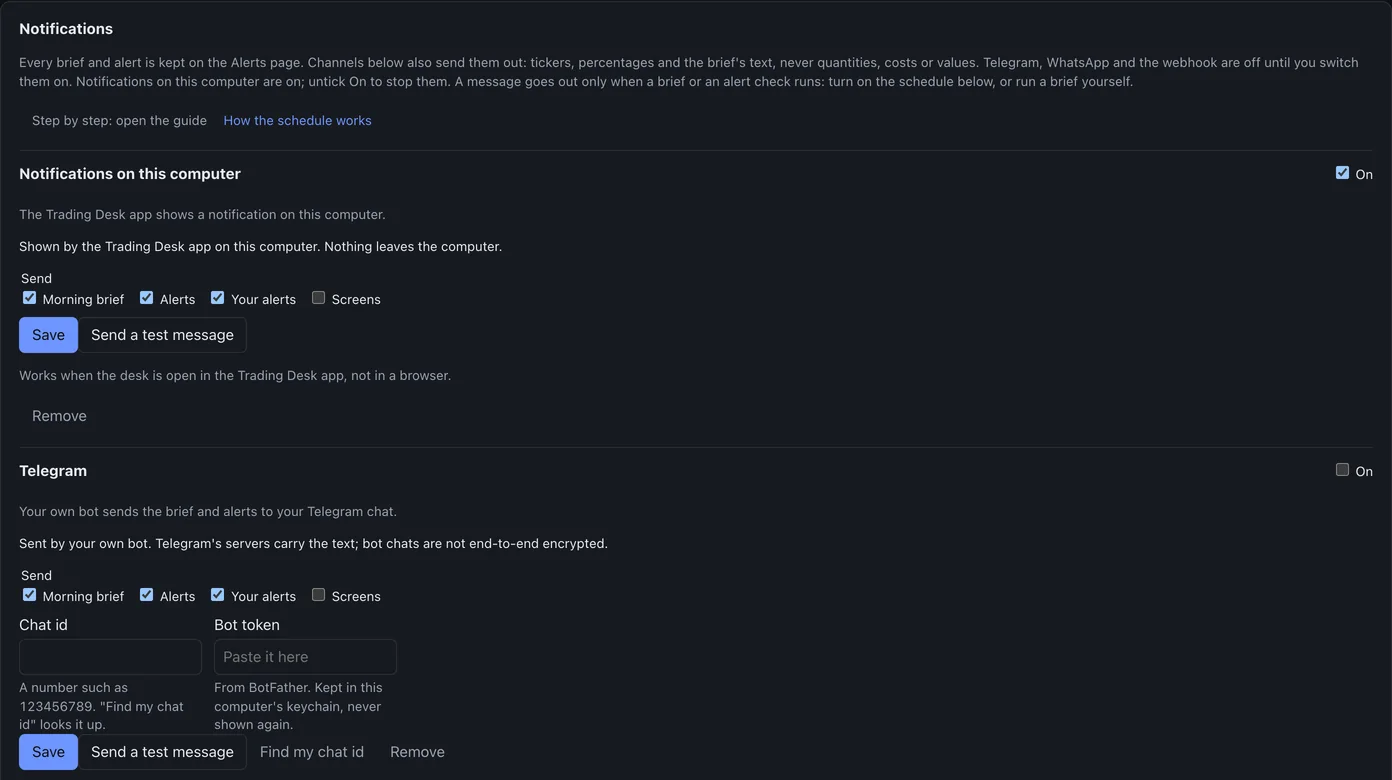
- In Trading Desk, open Settings and scroll to Notifications.
- In the Telegram part, paste the token into Bot token.
- Press Save. The token disappears from the box and the word set appears next to it. That is normal: it is now in your keychain.
Step 4. Find your chat id
The chat id tells the bot which chat to write to. It is a number.
- Still in the Telegram part, press Find my chat id.
- The desk asks Telegram once which chats have written to your bot. You will see a button with your name and a number, for example Anna (123456789). Press it. The number goes into Chat id. - If it says "No chats yet", go back to Step 2, send your bot a message, wait a few seconds and press Find my chat id again.
- Tick On, and tick what to send: Morning brief, Alerts, Your alerts, Screens.
- Press Save.
Want it in a group instead? Add your bot to the group, send a message in the group, then use Find my chat id and pick the group (its number starts with -100).
Step 5. Send a test message
- Press Send a test message.
- Within a few seconds your bot should write "Test message from Trading Desk" to you.
- If it says Didn't go, the line under the buttons says why, for example: - "Telegram refused the message: check the chat id…": you haven't written to the bot yet, or the chat id is wrong. Do Step 2 and Step 4 again. - "Telegram doesn't know that bot token": paste the token again (Step 3).
That's it for the channel. A message is sent only when a brief or an alert check runs. Turn on Settings → Schedule (see the schedule guide) or run a brief yourself; until then only the test message goes out. The computer must be on and awake at that time.
Who can read these messages? Telegram's servers carry them. Messages between a bot and a person are not end-to-end encrypted, so Telegram could read them. They contain no amounts of yours (see "What gets sent" above). In a group, every member can read them.
WhatsApp (possible, but read this first)
WhatsApp has no simple personal bot like Telegram. The desk uses Meta's official WhatsApp Cloud API, the same service companies use to message their customers. It works for one person, but it has three catches:
- Meta can read the messages. Meta runs the service that sends them, so the messages are not end-to-end encrypted on their way from the desk to you.
- The 24-hour rule. Meta only delivers a plain message if you have written to your business number in the last 24 hours. Outside that window Meta silently drops it, and the desk can't tell (it only sees "accepted by Meta"). In practice: send any message (such as
hi) to your business number each day you want the brief, or use Telegram instead. - Setting it up takes 20–30 minutes on Meta's developer website and needs a Meta (Facebook) account and a Meta business portfolio. Meta gives you a free test number that can message up to five numbers you verify, which is enough for yourself.
Meta's pages change often. The steps below follow Meta's "Get started" guide (developers.facebook.com/docs/whatsapp/cloud-api/get-started) but have not been re-checked against Meta's current pages: menu names and permissions may differ. If a step doesn't match what you see, trust Meta's page and use Telegram if it becomes a struggle.
Step 1. Create a Meta app
- Go to developers.facebook.com and log in with your Facebook account. If asked, register as a developer (it is free).
- Open My Apps and press Create App.
- Give it a name (for example
My Trading Desk) and your e-mail. - Choose the use case Connect with customers through WhatsApp and press Next.
- Pick a business portfolio or create one (your own name is fine), press Next, then Create app.
Step 2. Get the test number and add your phone
- In your app, open WhatsApp → API Setup (the page may say Quickstart, then Start using the API).
- Under From, Meta shows a test number. Under it is the Phone number ID: a long number. Copy it.
- Under To, add your own WhatsApp number. Meta sends a code to your WhatsApp; type it in to verify the number.
- Press Send message once. You should get Meta's "Hello World" message on WhatsApp. Reply to it (any text). That reply opens the 24-hour window.
Step 3. Make a permanent access token
The token shown on the API Setup page stops working after about a day. You need a permanent one:
- Open business.facebook.com, then Business settings (the gear).
- In the menu, open System users and press Add. Give it a name (for example
desk) and create it. - Select the new user and press Assign assets: - choose Apps, select your app, and turn on Manage app (full control); - choose WhatsApp accounts, select yours, and turn on full control.
- Press Generate token, pick your app, tick these permissions:
whatsapp_business_messaging,whatsapp_business_management,business_management. Set it to never expire if asked. - Copy the token. Like a password: keep it to yourself.
Step 4. Paste it all into the desk
- In Trading Desk, Settings → Notifications → WhatsApp.
- Phone number ID: the long number from Step 2.
- Your WhatsApp number: your own number with the country code, for example
+420 601 234 567. - Access token: the token from Step 3.
- Tick On and what to send, then press Save.
- Press Send a test message. If you replied to Meta within the last 24 hours, it arrives in WhatsApp from the test number.
Costs: messages from the test number to your own verified number were free when this was written. Meta changes its prices; check developers.facebook.com/docs/whatsapp/pricing if you move to a real business number.
Why not one of the free "WhatsApp API" services you find online? The common one (CallMeBot) is run by a third party who would read every message, it said it was not taking new users when we checked, and its address needs a kind of key parameter that Trading Desk refuses to contain on principle. If the 24-hour rule is a problem for you, Telegram or ntfy are the better choice.
Webhook, with ntfy as the example
A webhook sends each notice to a web address you choose. The simplest use is ntfy, a free app that turns those into phone notifications. No account is needed.
- Install the ntfy app on your phone (App Store or Google Play).
- In ntfy, tap + and subscribe to a topic. Make up a long topic name nobody could guess, for example
desk-anna-7f3a9c2e41. Anyone who knows the topic name can read your messages, so treat it like a password. - In Trading Desk, Settings → Notifications → Webhook: - Webhook address:
https://ntfy.sh/followed by your topic, for examplehttps://ntfy.sh/desk-anna-7f3a9c2e41. - Format: ntfy. - Tick On and what to send, then Save. - Press Send a test message. A notification appears in the ntfy app.
The other format, JSON, is for your own server or an automation service: each notice is posted as {"kind", "title", "body", "link", "url", "created_at"}.
The address must start with https:// and use a name (not a number like 1.2.3.4). Whoever runs that server (for ntfy.sh, the ntfy project) can read what is sent.
Notifications on this computer
In the paid edition the Trading Desk app shows a notification on your Mac or PC when a brief or an alert is made, and clicking it opens the right page. This one is on by default; untick On to stop it. Nothing leaves your computer. Like the other channels, it only has something to show when a brief or an alert check runs. In Settings → Notifications → Notifications on this computer press Allow notifications once (macOS asks for permission). Untick On to stop them.
Turning it off
- For a while: untick On for that channel and press Save. Your settings stay.
- For good: press Remove. The channel is switched off and its token or address is
deleted from your keychain.
- Telegram, to be sure: also send
/revokeor/deletebotto BotFather. - WhatsApp: in Meta's Business settings, delete the system user's token.
Everything that was sent stays on the Alerts page in the desk for 180 days, with a line saying where each notice went and whether it arrived.
If something doesn't arrive
- Open the Alerts page and expand the notice. It says, per channel, sent, failed
(with the reason) or not sent (for example "No chat id saved yet").
- "This computer has no credential store the desk can use": the channels need the Mac Keychain
or Windows Credential Manager. They are not available on Linux.
- WhatsApp says sent but nothing came: the 24-hour rule (see above). Send your business number
a message and try Send a test message again.
- A message that didn't go (no network, the service busy) is tried again on the next runs, up
to three times within six hours; after that the Alerts page marks it failed. In rare failures a message can arrive twice: when the computer is switched off or the job is stopped just after a message went out but before the desk noted it, or when the service answers with a gateway error after it already passed the message on. The desk never repeats a message more than that, and never one whose sending timed out.