
Guide · Import
Import your holdings from a CSV, and export yours
Bring your positions in from a broker's CSV or any spreadsheet, check every row before it is saved, and export your records whenever you like.
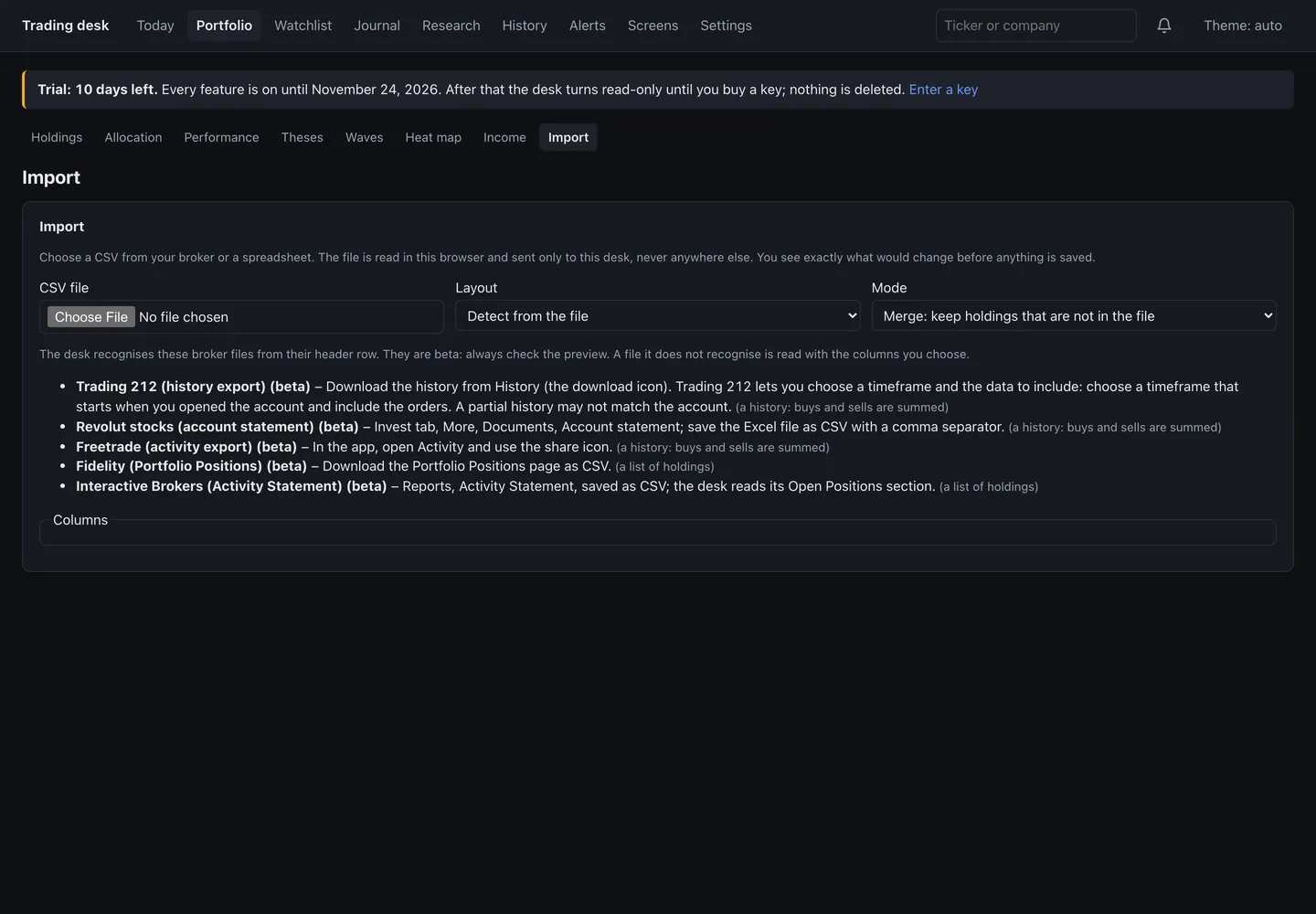
You don't have to type your portfolio in by hand. Portfolio → Import reads a CSV file from your broker or a spreadsheet, shows you exactly what would change, and saves nothing until you confirm.
Steps
- Choose the CSV file (up to 2 MB and 2,000 rows).
- Pick a Layout: Detect from the file, a broker layout, or Choose the columns for any other file.
- Pick the Mode: Merge: keep holdings that are not in the file, or Replace: drop holdings that are not in the file.
- Read the preview. What will change counts what is added, changed, removed and unchanged, and every row has a check. A ticker the desk can't place gets a Find button, so you can pick the right one.
- Press Confirm and save. The desk backs up your current portfolio first.
Broker layouts (beta)
- Trading 212 (history export)
- Revolut stocks (account statement)
- Freetrade (activity export)
- Fidelity (Portfolio Positions)
- Interactive Brokers (Activity Statement)
These are marked beta: check the preview against your broker's figures before you save. For any other file, Choose the columns maps Ticker, ISIN, Name, Quantity, Cost per unit and Currency.
Exporting
Settings → Your data has Holdings (CSV), Watchlist (CSV) and Decision journal (CSV), and on Pro Latest radar scan (CSV). They open in Excel, Numbers or Sheets. Exporting your own records works on every licence, after the trial included.
