
Help · Install
Getting started
Install Trading Desk on a Mac or a Windows PC, open it for the first time, and swap the demo portfolio for your own.
Install it
- Mac: download the disk image from the download section (Apple silicon, macOS 14 or later, notarized by Apple). Open it and drag Trading Desk to your Applications folder, then open it from there.
- Windows 10 or 11: install it from the Microsoft Store. The Store signs it and keeps it up to date.
Both are free to install and work the same way. The first time you open the app, your 10-day trial starts, with every feature on and no card needed.
The first time you open it
The desk opens on Today with a fictional demo portfolio, so every page has something to show: seven holdings, two watchlist names and a couple of journal entries. A banner at the top says how many trial days are left.
- Press Refresh on Today to fetch the latest prices, news and macro data.
- Look around: Portfolio, Watchlist, Journal, a ticker's page (search "Ticker or company" at the top).
- If you want the AI features, sign in under Settings → AI providers (how).
Make it yours
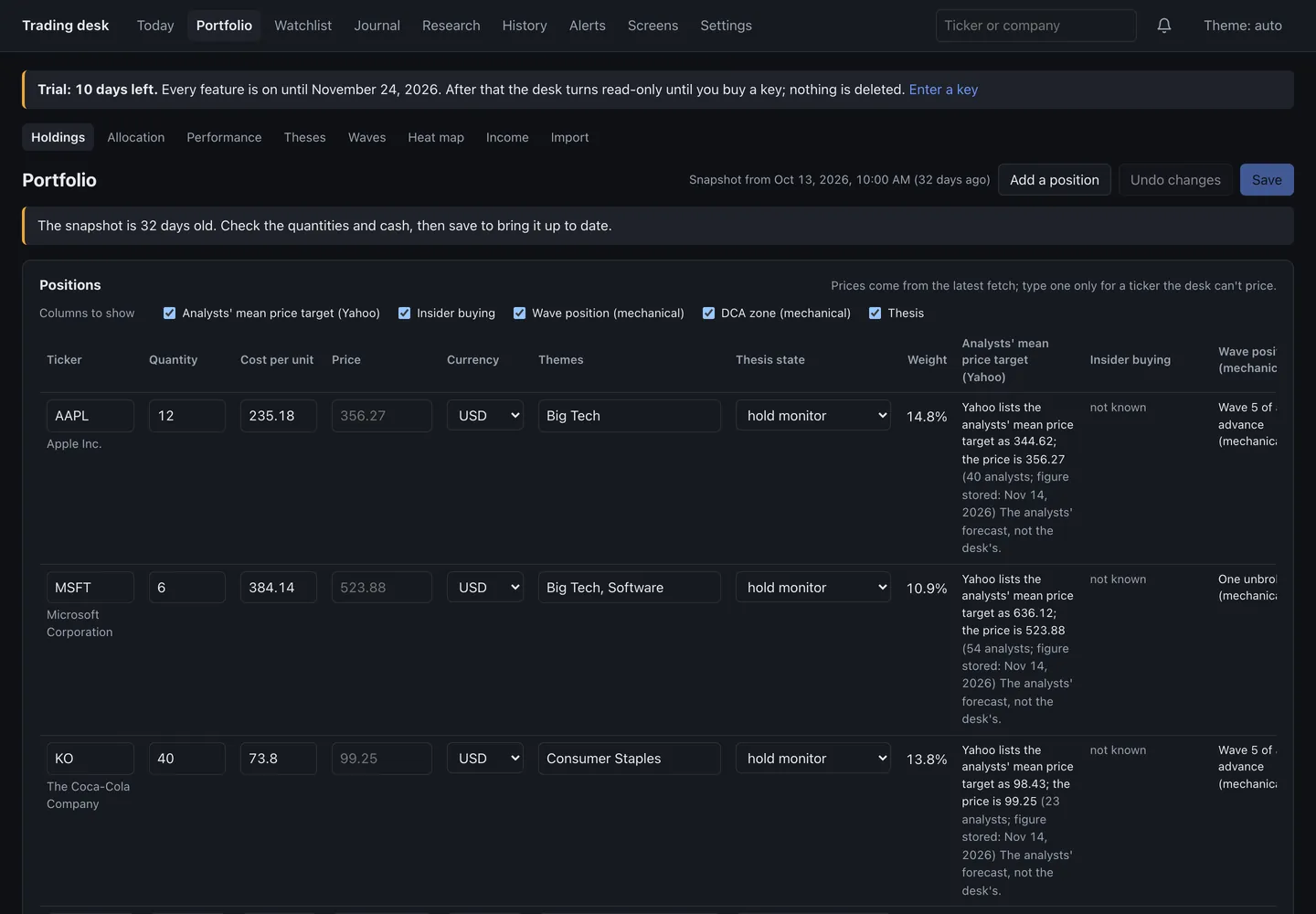
Replace the demo holdings with your own on Portfolio → Holdings (edit the rows, Add a position, then Save), or bring them in from your broker with Portfolio → Import. Every save backs up the previous version first. Your watchlist and journal have their own pages.
Getting around
The pages are along the top: Today, Portfolio, Watchlist, Journal, Research, History, Alerts, Screens and Settings.
- Mac: ⌘1 to ⌘9 open them (Today ⌘1 … History ⌘6, Settings ⌘7, Alerts ⌘8, Screens ⌘9), ⌘L looks up a ticker, and ⌘, opens Settings.
- Windows: Ctrl+1 to Ctrl+9 do the same, Ctrl+L goes to the search box and F5 reloads.